Website Environments
With visionOS 26, Apple introduced Website Environments for Safari. Any web site owner could add immersive scenes to their web pages, and visitors in Apple Vision Pro could activate them.
The problem is Apple has disabled this feature by default and re-disables the feature with each update to visionOS 26.
This page shows how to enable this amazing feature.
Enabling Website Environments in visionOS 26
To enable website environments in Apple Vision Pro, navigate to
Settings > Apps > Safari > Advanced > Feature Flags
then enable “Website environments”.
(After enabling website environments, you may need to reload this page)
Displaying Website Environments
When you are on a web page with a website environment, tap on the left button in the Safari Address bar (1), and then select “Open Website Environment” (2).
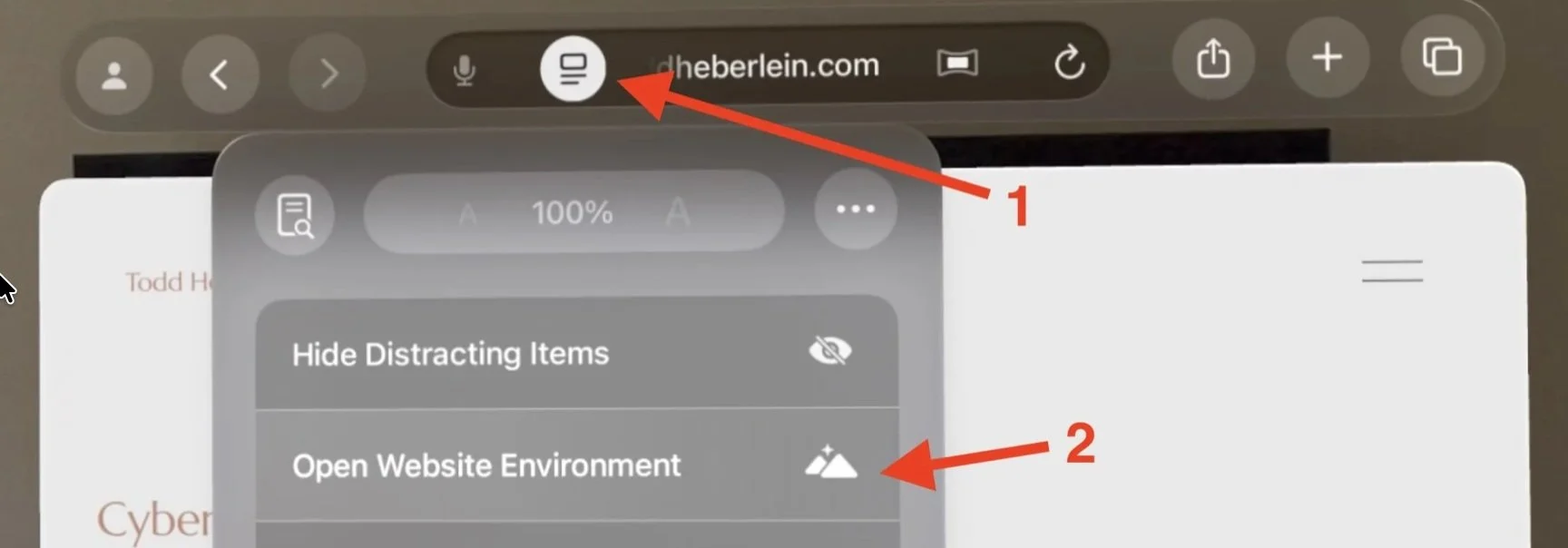
It may take a minute or so to download the website environment depending on the size of the environment and your connection speed.
Once downloaded and displays, rotate the Apple Vision Pro’s crown to dial in your preferred amount of immersion.
Browsing the Internet in a Website Environment
To browse the Internet while in remaining in a Website Environment, open a second Safari window and browse the Internet in that window. Just make sure you keep the window hosting the Website Environment open, but you can move it off to the side or even behind you.